Enabling Shared Computer licenses on a group license will allow an admin of a group license the ability to assign a seat to a specific computer. If a seat is assigned to a specific computer, any user with a FlowJo Portal account, paid or free, can access FlowJo on that computer. We only allow 10% of your total prepaid seats to Shared Computers.
To create a shared computer:
1) Select the Manage Shared Computers (bottom icon on the lefthand side of your BD Access Portal Admin tools page), then click the Add New Shared Computer button.
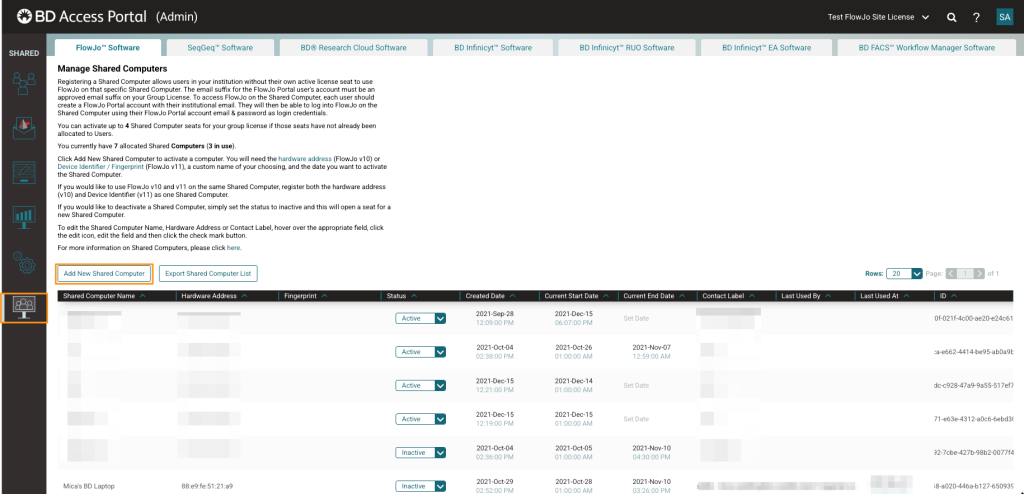
2) Enter the Shared Computer information below.
- Name (required) of the computer you would like to activate
- Contact Label (not required) of the computer you would like to activate. This can be a location name.
- Add the detected Hardware Address from FlowJo v10 and/or add the Device Identifier/Fingerprint from the BD Access Portal application to register the shared computer for access to FlowJo v10 and/or v11, respectively. (required)
- Locate v10 Hardware Address Instructions
- Locate the BD Access Portal application Device Identifier/Fingerprint Instructions

Do you need to replace or edit a previous Shared Computer?
Simply edit the Name, Contact Label, Hardware Address (v10) and/or Fingerprint (v11) on the established Shared Computer to replace a previous Shared Computer with new computer information.
Please note that:
a) Users who are only accessing FlowJo on a Shared Computer do not need to be invited to join the group license.
b) Every user on a shared computer must have their own individual BD Access Portal account. Individual BD Access Portal accounts can be created at https://www.bdaccessportal.com/.
c) When creating their BD Access Portal accounts, please have the users employ their company/institutional email address when they create the BD Access Portal account.
d) Company/institutional email address suffixes for must be whitelisted on your group license to use shared computers. Please contact flowjooffice@bd.com to add email suffixes to the whitelist for your account.
e) Admins can assign Shared Computers seats or assign those as User seats. So, if you do not use all of your allocated Shared Computer seats you can still invite users to join the group license and utilize remaining Shared Computer seats for individual Users.
d) If a user owns a User seat (meaning they have been invited to join the group license and are an active user) the Shared Computer will not be counted as one of their Authorized Devices.