FlowJo Error Messages
14-Day Offline Token Error Message

This error message means that a 14-day offline token was created for your FlowJo Portal account and you can now only login to FlowJo on one specific computer for 14 days of offline access.
You have exceeded the maximum authorized devices. Sign in to your FlowJo Portal account to manage your authorized devices.

This means that you have already logged into 4 computers with your FlowJo Portal account and that you will need to remove/replace one of the 4 other computers prior to signing into this new computer. Each FlowJo Portal account is only allowed 4 device replacements annually. More information can be found here.
Using the FlowJo license while offline. This session will expire in X minutes.

This error means that you are either offline (not connected to a network/internet) or you are online and your network is blocking FlowJo from authenticating licensing with cloud.flowjo.com. Please have your IT team whitelist cloud.flowjo.com on your network and any other security software that has been enabled on your computer. Doing this will allow the SSL certificate to be passed between FlowJo the desktop application and FlowJo Portal, the licensing service.
Is FlowJo stating that your are “unable to connect to the FlowJo Portal. You must be online”?
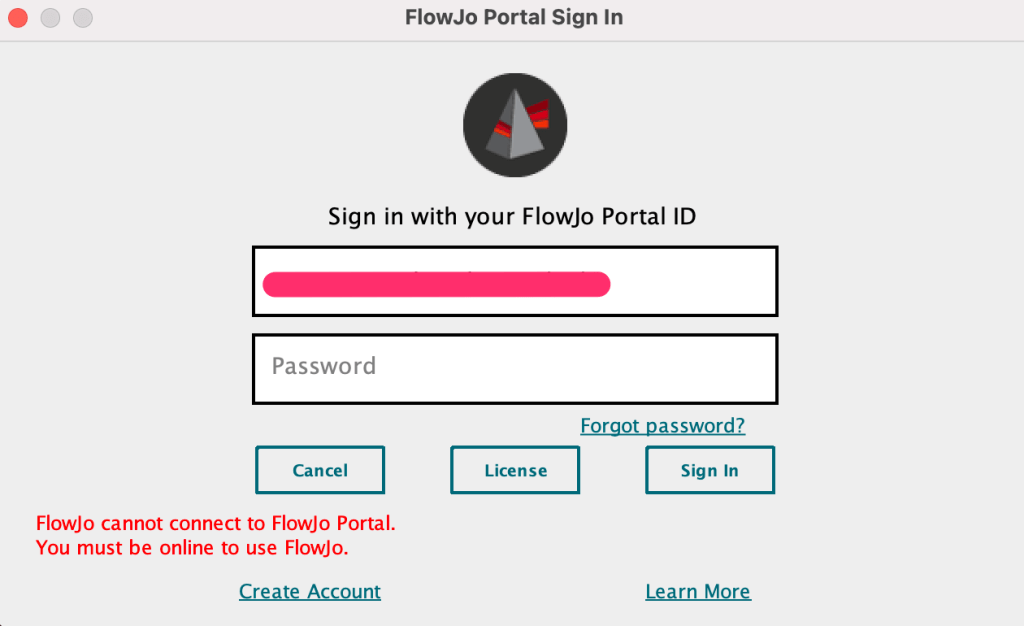
This can indicate a variety of issues related to FlowJo Portal not connecting to our servers.
This error can occur if security is preventing FlowJo from communicating with our server (cloud.flowjo.com). As mentioned above, make sure your IT team whitelist cloud.flowjo.com on your network and any other security software that has been enabled on your computer.
Additionally, try changing your “locale” settings in FlowJo Preferences to USA if it is not currently on USA. FlowJo ->Preferences (Red Heart Icon)-> Locale -> Choose US – United States

Is FlowJo stating “License has expired”?

This indicates that your license is no longer valid.
If you are on a group or institution license
Contact your FlowJo administrator. This might be your IT support or your core manager at your institution. They can either extend your end date or renew your institutions’ license.
If you purchase FlowJo from BD directly.
Renew your FlowJo license by using the quote submittal form on our website.
Is FlowJo stating “No valid licenses found”?

Ask your site’s portal administrator to invite you to their portal site license. Check that you have accepted the Portal license email sent from your institutions’ portal administrator.
A remote resource could not be found. Try again, or contact for assistance. (code 500) FlowJo cannot connect to FlowJo Portal. You must be online to use FlowJo.

If you receive this error message, please reach out to FlowJo@bd.com for support.
FlowJo Portal Troubleshooting
Do you have an active FlowJo Portal License for your FlowJo Portal account, but you are unable to sign in to FlowJo with your FlowJo Portal username/password?
Unable to Reset your FlowJo Portal Password?
1. If you haven’t tried already, please visit cloud.flowjo.com and click on the “Forgot Password? link on the bottom left hand corner on the FlowJo Portal Sign-In page. If you do not receive a PW reset email via this process, please check your junk or spam folders for an email from no-reply@flowjo.com. Still haven’t received the PW reset email? See step 2 below.
2. Did you receive a verification email from no-reply@flowjo.com when you were going through the account creation process? If not, was the verification email send to your Spam or Junk folder? If so, please try locating that email and verifying your account or try signing into cloud.flowjo.com and resending the verification email. by clicking on “resend verification email”. If you still do not receive the verification email, the email sender could be blocked by your network and your IT team will need to whitelist no-reply@flowjo.com for approved email sending. Please contact FlowJoOffice@bd.com, so we can check our email sending system to confirm that the verification email was successfully sent.
3. Check your email address and confirm that it is the email address that you used when creating your account. If you are using an email address with added email suffix characters, it could be that FlowJo Portal does not recognize your consolidated or increased characters email address due to the change in email suffix.
FlowJo Portal Group Licensing
Was your invitation to join FlowJo Portal not received?
1. Is your email address correct? Did you email address change or have your email address been established on your network if you are a new employee? Please confirm this information prior to moving to step 2.
2. It’s possible that the invite from no-reply@flowjo.com was blocked by your server and because of that, the email bounced. FlowJo will need to remove you from our bounce list prior to your admin being able to resend the invite. Please contact flowjooffice@bd.com for bounce list removal and please have your IT team whitelist cloud.flowjo.com and no-reply@flowjo.com on your network so FlowJo can talk to cloud.flowjo.com and you can receive emails from FlowJo Portal.
400 Error Message

Are you receiving a 400 Error Code when trying to accept the invitation to join FlowJo Portal from your group license administrator? This means that the administrator(s) of the group license has allocated all of their available seats and there are no more seats remaining for you to join the group license. Please contact your admin for more information or so that they know you are waiting for seat and cannot join the group license. They will be able to login to their FlowJo Portal account, access admin tools and revoke invitations or deactivate other users, so you can join the group license.