Introduction
The Group License Management User Archival Tool enables a license administrator to clean-up their users table to more efficiently manage their license. Archiving a user deactivates them (if currently active) and removes them from the default users table view but does not delete their user data. This guide provides step-by-step instructions for using the tool to support more efficient and organized license management.
Accessing the Tool
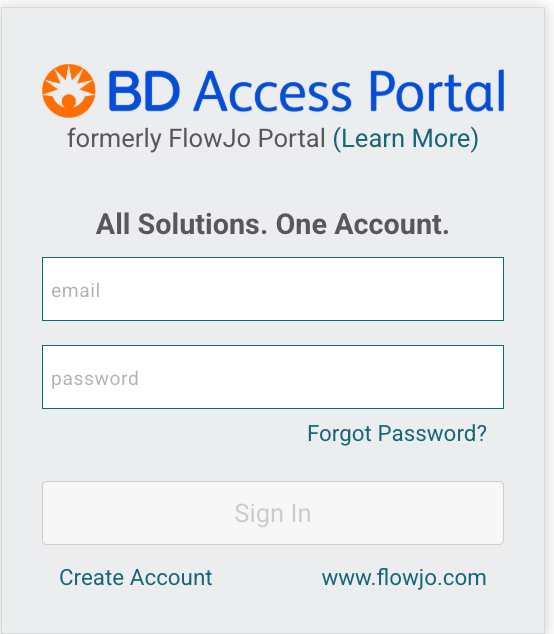
- Log in to your BD Access Portal account at bdaccessportal.com using your account credentials.
- Access your Admin Tools
- Click on the blue Initials box on the top right corner and choose Admin Tools

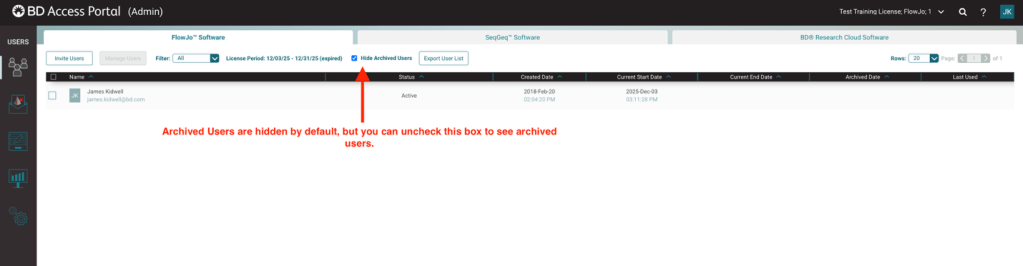
- User archiving is managed through the main Users tool, and the list automatically hides archived users by default.
Archiving Licenses
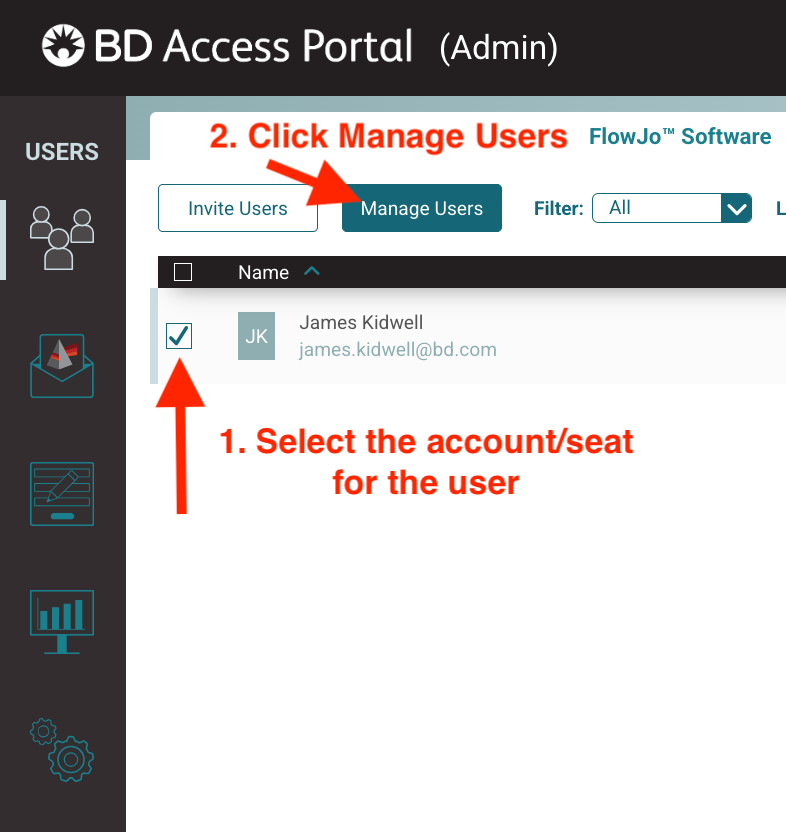
- On the main Users dashboard, locate the account that you would like to archive.
- Select the account and click the Manage Users button
- Multiple accounts can be selected if you would like to archive multiple users at once.
- Check the Archived radio button which will set the Deactivation Date of the account to today’s date and click Apply.

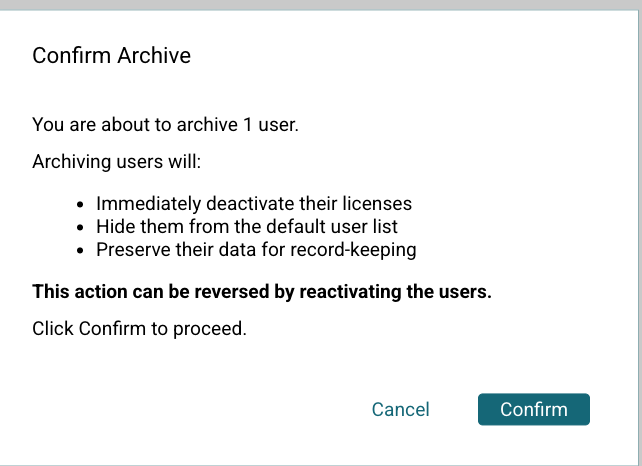
- Confirm that you would like to archive the user by clicking the Confirm button on the confirmation pop-up page.
Retrieving Archived Licenses
- On the Users tool dashboard, uncheck the Hide Archived Users box
- Use the search or filter options to locate the desired license record.
- Select the account that you would like to unarchive and click Manage Users
- Check the appropriate radio button to either activate or keep the license inactive and remove it from an archived state.
- The license will now reappear as unarchived user in your users’ tool list.
Support
For additional assistance, contact flowjooffice@bd.com
Users who would like their accounts permanently deleted can request the account be deleted by emailing flowjooffice@bd.com.