Can’t sign in to FlowJo™ version 11, v10 or SeqGeq™ Software?

In some cases, your institution’s network security settings may prevent FlowJo and SeqGeq from connecting to FlowJo Portal. If you are able to sign in to your FlowJo Portal account page, but can’t sign in to FlowJo/SeqGeq, we suggest the following:
- Contact your institution’s IT Department.
- Request that your IT department change your network security settings to allow FlowJo and/or SeqGeq to pass SSL certifications to pass by the network security settings. The servers respective URLs are below. FlowJo uses ports 80 and 443.
- Serial Number: http://fls.flowjo.com
- Portal: https://cloud.flowjo.com
- BD Access Portal: https://bdaccessportal.com/
- Help Links (Documentation): http://docs.flowjo.com
- FlowJo also pings the following URLs to determine if the user has access to the internet:
- https://flowjo.com
- http://umpqua.treestar.com
- https://google.com
- I would also suggest inquiring with your IT security group if they use a Proxy. If so, the proxy information they provide can be entered within the FlowJo License Preferences.
- Once resolved, you should be able to sign in to FlowJo/SeqGeq! If you continue to have issues with login, please contact FlowJoOffice@bd.com and FlowJo@bd.com.
IT Dept. Special Instructions
The new FlowJo Portal licensing system authorizes FlowJo over SSL and the application requires the SSL cert from our certificate authority. Some high security networks are setup to replace SSL certs with internal certs. If this is the case, FlowJo will not authenticate properly. To resolve this, change the network security settings to allow FlowJo and/or SeqGeq to pass SSL certs to the application. Please see the respective URLs and instructions above.
FlowJo Version 11 Help with Sign-in
FlowJo version 11 includes a BD Access Portal client that will need to downloaded, installed, opened and logged into if you would like to run FlowJo version 11. If you the globe on the bottom left of the BD Access Portal login page is not green, then bdaccessportal.com is unable to authenticate and the communication between the BD Access Portal client and our server is being blocked by network or computer security software. More information below.
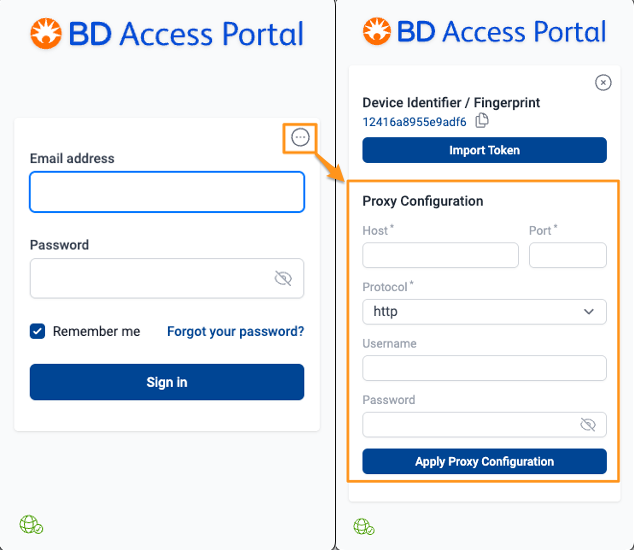
Q. My institution employs a Proxy Server to manage application network traffic. Can I use FlowJo™ 11?
A. Yes, BD Access Portal v2.3.0 and later have Proxy support. Please Update to the latest version of FlowJo v11 and BD Access Portal: https://www.flowjo.com/flowjo/download
Q. What is the URL that needs to be unblocked by my IT department to use FlowJo™ v11?
A. The authentication server URL for BD Access Portal is https://bdaccessportal.com/
The application prefers port 16964, but it will get a port dynamically if not available.
Q. BD Access Portal is running, but the BD Access Portal login window says I have Invalid Credentials when my FlowJo Portal login information is entered.
A. The Invalid Credentials error may indicate that the BD Access Portal application cannot reach the license authentication server at https://bdaccessportal.com/. Please examine the color of the globe icon in the bottom left corner of the BD Access Portal login window. If the globe icon in is yellow, there is some institutional or company network IT security blocking the application. Your IT security group may need to whitelist https://bdaccessportal.com/ and/or provide an exception in their security software to allow the application to communicate with the server at this URL. If the globe icon is Green, then the application is able to reach the authentication server.
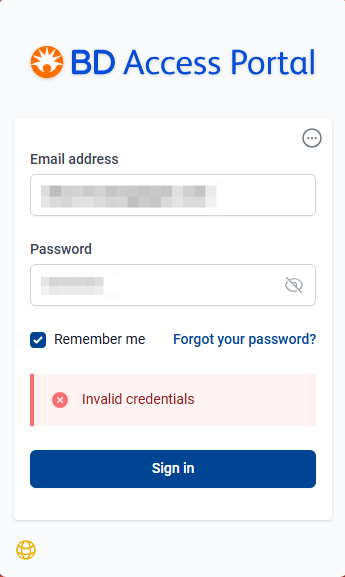
If the globe is green, and you have just created a new FlowJo Portal account, then please make sure you have verified your email address by clicking the link in the verification email sent from no-reply@flowjo.com. The Invalid credentials error will be displayed in you have not verified your account email.