Plugins are executable java files that extend functionality of the FlowJo application. These can be installed and used as shown below.
Installing R on a Windows PC:
Installing R on a Mac:
Installing the PluginPlay Bundle:
Installing Plugins in FlowJo v10:
- Create a folder named “plugins” on your computer. On a Windows computer this folder will already exist within the “FlowJo_v10.x” folder in the “Program Files”. On a Mac, it is typical to create a plugins folder in the “Applications”.
- Add your plugin of interest to the plugins folder on your machine, and restart FlowJo:

- Plugin actions can be accessed and initiated from within FlowJo under the Plugins Menu. (Workspace Tab –> Populations Band –> Plugins menu)

- If you do not see individual plugins listed within the Plugins menu following installation, you may need to tell FlowJo the location of the plugins folder by specifying the folder’s file path in the Diagnostics section of FlowJo’s Preferences (FlowJo / Preferences / Diagnostics).


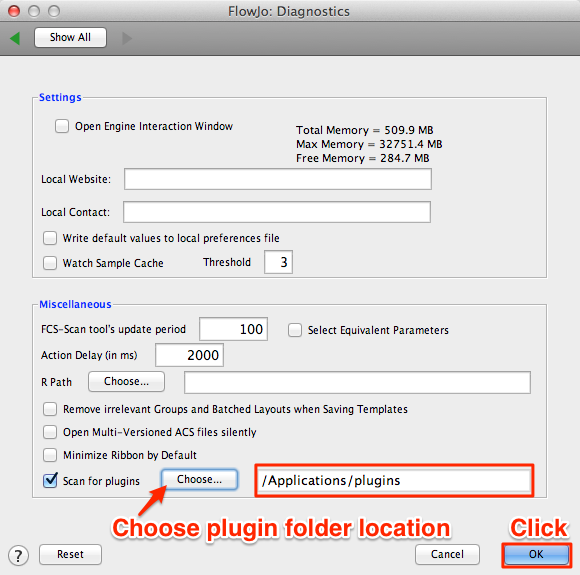
- Restart FlowJo. Your plugins should now appear listed in the Plugins menu.
- As new plugins become available, they will be posted for download from the FlowJo Exchange website, which can be accessed from within FlowJo under the Plugins Menu.

Installing the R statistical computing environment
Please note some plugins utilize the R statistical computing environment to produce results. For these plugins to work, R must first be installed and setup with the appropriate R packages.
To run a Plugin that calls to the R statistical computing environment:
- Install R on you computer. Download R from the Comprehensive R Archive Network (CRAN) website. Follow the links and installation directions for your operating system.
- If installing R on a Mac: Install R in your Applications folder. Set the R path by typing “/usr/local/bin/R” (no quotes) within the box. Though the R application is located in the Applications folder, the actual executable file is located within the above mentioned path. If you install R in a folder other than Applications, you must specify the full path.

- If installing R on a PC: R will automatically install by default within the C: drive Program Files folder, but you must inform FlowJo the location of your R installation by selecting it in the Diagnostics panel of your FlowJo preferences. The default R Path on a PC

- If installing R on a Mac: Install R in your Applications folder. Set the R path by typing “/usr/local/bin/R” (no quotes) within the box. Though the R application is located in the Applications folder, the actual executable file is located within the above mentioned path. If you install R in a folder other than Applications, you must specify the full path.
- Restart FlowJo. Plugins that utilize R will now know where to look for and open the R environment.
- R-based plugins will attempt to install the necessary R package dependencies the first time that the plugin is run.
If the plugin fails to complete and return results initially, this is usually due one of the following issues:
1) The R path is incorrectly specified in the FlowJo Diagnostics Preferences
- If the plugin process fails immediately, then the data is likely not getting to R.
- Solution – Check the R path is formatted as suggested above. Correct as needed.
2) The default R library location is not writable due to your user account permissions settings
- Solution – Open R and type the following:
- install.packages(‘png’)
- Press return
- When R tells you that the default R library is not writable and asks if you want to create a new writable R library, choose Yes.
- Choose a CRAN Mirror location closest to you, (or choose the 0:Cloud option)
- Return to FlowJo and try running the plugin again.
3) There are special characters in the file paths to either the FCS files, or workspace save location that are not allowed in R.
- Solution 1 – Remove special characters from the R path and try again.
- Solution 2 – If your workspace is saved to an external drive system (cloud or network drive), try saving a fresh workspace to your Local Drive System (Desktop or Documents folder for example), then running the plugin process from that new workspace. The issue may be drive permissions related, not allowing R to write to that external drive location.
Questions about plugins or FlowJo? Send us an email at flowjo@bd.com